THE CONTEXT BIBLE HYPERTEXT TUTORIAL
in Thinker format for Windows and Mac. Table of Contents Index
Back to Main Page
INTRODUCTION - Getting around in this file.
These instructions refer to using the Thinker hypertext program. If you are reading this on the web site (rather than Thinker), your browser controls will be somewhat different and many of the links will not work. If you download the Context Bible and Thinker demo, you will have the advantage of being able to use the controls as you read this file in Thinker format.
SCROLLING. On the right side of this window are up and down arrows. These continuously scroll one line at a time as long as the mouse button is held down. (These may look different on the Windows operating system. These graphics were created on a Mac.)

Grab the scroll bar and move to any location in the document. Or click in the empty space above or below to scroll up or down one window of text at a time.

When you read to the last line in the window, point to the empty area below the scroll bar and click anywhere. The bottom line will then become the top line.
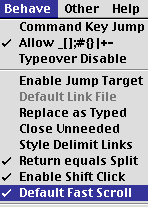
This is true if "Default Fast Scroll" is checked on the "Behave" menu. If it is not checked the scrolling will be one paragraph at a time. Holding the shift key down reverses the current method of scrolling.
Thinker is 5 programs in one: hypertext, word processor, web page editor, outline processor, and database. It may not be the most powerful program available for each of these processes, but this combination of capabilities gives Thinker some very interesting and unique possibilities.
BACKTRACK. Most statements so far have begun with a word or words in parentheses. These words are called labels. If the ones at the start of this statement are not visible, choose the menu item "Hide Labels" from the "Opts" menu.
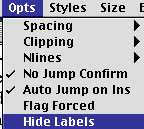
That will remove the checkmark next to it on the menu and you will then see the labels. If you choose "Hide Labels" again, it will hide the labels. They are like addresses or Post Office boxes. They label statements for quick locating. You can jump to any of them at any time. Jumping to a label is one of the things hypertext does. You can think of it like tying strings between statements. You can have a massive web of invisible strings tying words and phrases to other statements. Yank on the string and the linked-to statement instantly pops to the front.
Click on the back button and you reverse the action (explained below).
On web pages, these labels are called anchors. Thinker can export files as HTML code, creating highly linked web pages without forcing you to look at those obnoxious HTML tags.
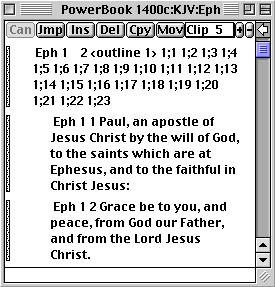
Using the Table Of Contents, you can jump to labels throughout this document. After you jump to a label in some far-off location in this file (or even some other file), you are not hopelessly lost. You can backtrack to where you just came from. To backtrack, point to the arrow pointing left (top-right corner), and click the left mouse button.

You can continue to jump around, then backtrack through the last 16 locations you have jumped from. This is like having automatic bookmarks placed and numbered for you, leaving a trail as you browse through files. Clicking on the backtracking arrow will back you out of whatever maze you got yourself lost in while exploring. If you want to use the Table of Contents, double-click on it in this sentence, then use the backtrack arrow to come back here.
JUMP ORIGIN. If you make the below described jump to the beginning of this file, you can return by clicking on the arrow pointing left. To go to the start of the file at any time, point to the button at the top of the window that says Jump, and click the mouse button (left button on Windows). Then click on Origin in the menu that pops up. There is also a keyboard short-cut to do this more quickly. Hold down the Command key and press the number 0 (zero). The Command key has a picture of an apple and/or cloverleaf on it, and is to the left of the space bar. On Windows use Ctrl-0. You can also drag the scroll bar to the top.
JUMP MARK. One more keyboard shortcut you may find handy while reading this file is Command M (Ctrl-M on windows). The pointer will turn into a hand. Point the hand at this statement and click the mouse button (left mouse button on Windows). This statement will be put at the top of the window.
OTHER THINGS IN A THINKER WINDOW
THE USUAL BUTTONS (on Mac they are called boxes). In the top-left corner is the close box. In Windows, it will be the X in the top right of the window. It will close the window. If it is the last Thinker window open, it will quit the program.

Along the top of the window is the drag bar to grab and move the window around. In the bottom-right corner is the sizing box to make the window a different size. When you do this, the text in the window will automatically word-wrap to fit the new width. You don't have to reset the margins.

On a Mac, If you need a reminder of the purpose of the boxes and buttons, select "Show Balloons" on the "Help" menu. Then point to the buttons.
THE MESSAGE AREA. The blank area above (under the drag bar) is the message area. It displays error messages.
MEMORY. At the top middle of the window, is the RAM usage indicator. It shows how much free RAM is still available for Thinker to use for keeping track of edits and parts of files.
On a Mac using pre Mac OS X, memory is set manually by clicking once on the Thinker icon, pressing "Command I" (the letter "i"), and changing "Show:" to "Memory" and changing the preferred size. If Thinker crashes, most likely it needs more memory. This usually happens if you do very large amounts of finding and replacing text or export large files. A little trial and error will reveal how much RAM is needed. After finishing your memory intensive operations, you can lower the memory to give other programs space. Mac OS X and Windows will not require manually setting the RAM usage.
THE ZOOM BOX. This will zoom between partial and full screen. It is located in the top right part of the window. The Windows operating system is slightly different.

The Mac collapse box looks like this and reduces the window to the drag bar. On Windows, it looks like a single short line and makes the window disappear.

FONTS. Thinker allows you to use fonts freely. Select the text you want in a new font, and select one from the "Styles" menu. This will assign the font to that text only. It will stay in that font even if you change the window's font. To change the font for the whole window, you need to make the cursor disappear first. The cursor shows where you are typing. Click up in the message area (the blank area above), then select a font. To cause text that has had a font applied to it to go back to the window default font, select all the text in the statement, then select the current window's font on the "Styles" menu and size on the "Size" menu.
THE CLIP BUTTONS. In the middle of the window above is the word Clip with a number next to it. This is the current level of outlines that will be displayed. Anything in an outline level beyond this number will be hidden. Depending on such things as font and screen size, you can display up to about 30 levels of outline. To raise or lower this Clip Level, click on the "+" or "-" buttons to the right. You can also click on the word "Clip". A pop-up menu will allow you to quickly change the level.

In the Context Bible, you can change the clip level to show or hide translator's notes, cross references, commentary, questions, and observations in several levels of outline. When something is hidden under a statement, a "+" sign will appear to the left of the first line of the statement. To see the hidden part of the outline, raise the clip level. You can also click on the "+" symbol next to the statement, which causes only a local opening up of the outline. If a "-" sign is to the left of a statement, it means the outline has been opened up locally this way. You can click on the "-" sign to close the outline locally to the global setting. Below are displayed the first 30 levels for you to play with. Enquiring minds want to know. This statement is at level 3.
4 The Universe
5 Local group of galaxies
6 Milky Way galaxy
7 Solar System
8 Earth
9 Hemisphere
10 Continent
11 Nation
12 State
13 City
14 Street
15 Address
16 Room
17 Location in room
18 You are here
19 Leg
20 Foot
21 Toe
22 Toenail
23 Cell
24 Cell Membrane
25 Protein molecule
26 Amino acid
27 Carbon atom
28 Electron
29 Quark
30 mathematical infinitesmal
HOW HYPERTEXT IS USED IN THE CONTEXT BIBLE. Hypertext is the capability to link different parts of a document or different documents together. You can instantly jump from one end of a link to the other end. This makes it an excellent tool for adding cross-references to the Bible. It is also used to quickly move from any verse to any other verse.
You can think of it like tying strings from any word to any statement in a set of documents. There are virtually no limits on the number of documents or the number of strings tying them together. There could be millions of each. To see where a string is tied to, pull on it and another text is pulled through to the screen. The Context Bible contains tens of thousands of these links, and you can add hundreds of thousands more. Best of all, you don't have to look at cryptic tags or become a programmer to do this.
Thinker can also link to pictures index-p4.gif,, sounds HAL - Sorry.c, , other programs program name, , files file name, , email addresses mailto:jackseay@earthlink.net, , or web pages http://www.rebol.com, . See the Thinker documentation for more about this.
With hypertext, you can do more than just write footnotes and cross-references, you can take the reader to the referred-to document or verse -- instantly. You can compose your own reference Bible that can do things paper can't, such as edit the same topic paragraph anywhere it is viewed after dozens of Bible verses. Any changes you make from any of those locations will be visible in all the other locations.
JUMPING TO ANOTHER BOOK OF THE BIBLE. Each book of the Bible begins with links to every other book of the Bible. To go to any of them, point to the abbreviation, and double-click on it. Each abbreviation contains three letters. In most cases, they are the first three letters, for example, Gen, . The exceptions are Judges Jug,, Philippians Php,, and Philemon Phm,
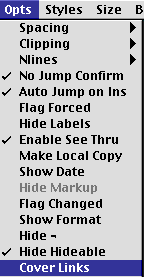
Links to other files have a comma after the file name, such as Gen, . Anytime a link ends with a comma or contains a space, it needs to either be enclosed in angle brackets Gen, or given a style other than plain, such as Gen, or Gen, on this page, select "Cover Links" on the "Opts" menu to see the angle brackets surrounding them.
There is a reason Thinker doesn't automatically include punctuation at the end of a link. This is so words in a sentence that come before a comma or other punctuation can link to a label in the current file. Remember, a comma in a link means a different file is linked to. For example, the word "example" in front of the comma in this sentence would link to a label in this file - (example). This is true even though links containing commas refer to other files. You don't have to remember all this now, as you will often see how it's done in every book of the Bible. Here is what the links to all the books of the Bible look like:
Gen, Exo, Lev, Num, Deu, Jos, Jug, Rut, 1Sa, 2Sa, 1Ki, 2Ki, 1Ch, 2Ch, Ezr, Neh, Est, Job, Psa, Pro, Ecc, Son, Isa, Jer, Lam, Eze, Dan, Hos, Joe, Amo, Oba, Jon, Mic, Nah, Hab, Zep, Hag, Zec, Mal,
Mat, Mar, Luk, Joh, Act, Rom, 1Co, 2Co, Gal, Eph, Php, Col, 1Th, 2Th, 1Ti, 2Ti, Tit, Phm, Heb, Jam, 1Pe, 2Pe, 1Jo, 2Jo, 3Jo, Jue, Rev,
JUMPING TO ANOTHER CHAPTER IN THE CURRENT BOOK OF THE BIBLE. This is simple. The number itself jumps to that chapter. So the book of Ephesians starts with the links 1 2 3 4 5 6. Double-clicking on any of these numbers jumps to that chapter. Each chapter begins with the chapter number as a label (1). This is the label you are jumping to. If, in your comments that you type into the Bible, you want a cross reference to a chapter in the same book, you could type "see 5". Point to the 5, double-click, and it takes you to chapter 5 of that book.
JUMPING TO ANOTHER VERSE IN THE CURRENT BOOK OF THE BIBLE. Here is a sample verse:
Eph 4 25 Wherefore putting away lying, speak every man truth with his neighbour: for we are members one of another.
The link to this verse will look like the label 4;25 . You can type 4;25 anywhere in the book of Ephesians and it will take you to 4;25. Just double-click on it. Each chapter begins with links to every verse in that chapter. If you were in Ephesians 4:25, you could see them by pointing to the 4 after Eph and double-clicking on it. That will take you to the beginning of the chapter where you will see: 4;1 4;2 4;3 4;4 4;5 4;6 4;7 4;8 4;9 4;10 4;11 4;12 4;13 4;14 4;15 4;16 4;17 4;18 4;19 4;20 4;21 4;23 4;23 4;24 4;25 4;26 4;27 4;28 4;29 4;30 4;31 4;32 . From there, you will be able to double-click on one of the links to go to any verse in chapter 4. Or you can just scroll to the verse if that is quicker.
The Eph in the above verse is a link to the beginning of the book, where you find links to all the chapters in this book and all the other books of the Bible. So each verse in the Bible already contains at least 2 links to places where you find more links.
JUMPING TO THE NEXT AND PREVIOUS CHAPTERS. At the beginning of each chapter you will see links to the next and previous chapters. Ephesians 4 thus starts with: (4) Eph 4 3 5 outline 4 4;1 4;2 4;3 ... First there is the chapter label (4) . Then the book you are in Eph , which is also a link to the beginning of the book where you find more links. Next is this chapter 4 . Then the links to chapters 3 and 5 . outline 4 is a link to an outline you could write and place at the end of Ephesians. It doesn't link to anything until you insert a statement and type the label (outline 4) . Then there are the links to all the verses in chapter 4.
EXPLORE A BOOK ON YOUR OWN. You are ready to try using some of the links in the book of Ephesians. With Thinker, you can work in up to 8 windows at a time. To open a new window and jump into it, choose the menu item "No Jump Confirm" on the "Opts" menu.
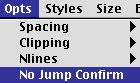
The check mark should now be gone, showing that it is turned off. Once the window is open, you can zoom it to full size, or drag and resize it. When you are finished with the new window, you can close it. Now double-click on this link Eph, and choose new window in the pop-up menu.
Now that you are back reading this file again, click on this window to make it the active window, then choose the menu item "No Jump Confirm" on the "Opts" menu. The check mark should return.
JUMPING TO A VERSE IN ANOTHER BOOK OF THE BIBLE. This is a combination link. It contains a link to the book plus a link to the verse. Eph,4;25 is a link of this type. It isn't required to be enclosed in angle brackets or given a style like Eph, or Eph, because it no longer ends with punctuation.
WRITING YOUR OWN CROSS REFERENCES. You can add a virtually unlimited number of cross-references to the Context Bible. As you come across relevant verses in your studies in a concordance, Bible dictionaries, reference Bibles, and commentaries, you can add them in statements you insert after the verse. The cross references for Ephesians 4:25 could read: Psa,40;10 Zec,8;16 Luk,20;21 Joh,3;11 Joh,16;13 Rom,9;1. Paragraphs are called Statements in Thinker. Before understanding how to insert them, you will need to know a little about how outlines work in this program.
In the next section, you will make some temporary changes to this file, which won't be saved. If you have typed any of your own notes in this file, select "Save" from the "File" menu.
OUTLINE PROCESSING IN THINKER. If you can see the labels beginning this statement, hide them. Select "Hide Labels" From the "Opts" menu.
RAISING OR LOWERING THE CLIP LEVEL. As explained already,you can raise or lower the outline clip level using the clip buttons above: the Clip nn, "+" and "-" buttons.
Each statement in a Thinker document is more independent than paragraphs in a word processor. This is because of the database, hypertext and outline processing capabilities of Thinker. You can select text only within a statement, not across statement boundaries. The statement boundaries are the blank lines separating the statements. Try selecting text within a statement, then cross a blank line. To delete, copy, and move multiple statements, you will need to mark a part of the outline. Following are definitions and exercises to help you understand the following parts of an outline: branch, plex, and group. Scroll this window until the below statement is at the top.
BRANCH. Using the "-" or Clip nn button, lower the clip level to 3 while watching the outline below. Then raise it to 7 using the "+" gadget.
- A statement like this is sometimes referred to as a Branch. This is because it is organized like a tree. On it hang other branches. If a branch is cut off and moved, all the branches that hang on it will move with it. If it is deleted, all the branches that hang on it will be deleted with it. This branch contains the statements below and to the right of this (until you come to 1.2, which starts a new branch at the 4th outline level). You can see this easier if you lower the clip level to 4. Everything hanging on this branch will be hidden. Now set the clip level to 7.
- This is a branch hanging on the 1.1 branch above. There are no branches hanging on this one. If you copy, move or delete the above 1.1 branch, this goes with it.
- This also hangs on the 1.1 branch. four branches hang on this one. One of them (3.3) has three branches hanging on it.
- This is the last branch hanging on 2.2.
- This is the last branch hanging on 1.1. Set the clip level to 5 and scroll the window to make 1.1 visible to see this more clearly.
- A new branch not hanging on 1.1. If you copy, move, or delete 1.1 or this branch, it won't affect the other. Lower the clip level to 4 and scroll up using the up arrow until you can see both. Scroll to set the statement below at the top of this window. You can do this faster by selecting "Mark" on the "Jump" menu or using the keyboard shortcut shown on the menu - Command M on Mac or Ctrl-M on Windows. Then point to the statement below and click the mouse button.
PLEX. A Plex contains all the branches at the same level that hang on the same branch above them. The branches 1.1 - 1.3 below are a plex. Set the Clip Level to 4, then to 7.
- If a pop-up menu has a "Plex" option on it, you could mark any one of the branches in the plex. The operation would then be performed on the whole plex. To see these pop-up menus, point to the "Copy" button above. Click the (left) mouse button. Then point to "Cancel" and click on it. Do the same with the "Move" and "Delete" buttons.
- This group 2.1 - 2.3 is another plex (set clip level to 5). 3.1 - 3.4 are included in it, because they are hanging on the 2.2 branch (set clip level to 6).
- This group 3.1 - 3.4 is another plex.
- DELETE. Jump Mark or scroll so this is at the top of the window. Below is a Plex you can practice deleting. Before doing this, select "Preferences" on the "File" menu and make sure "Paranoid Saves" does not have a check mark next to it. Then click on "OK". Set the clip level to 7. Click on the Delete button above, and point to Plex in the pop-up menu. Point to Mark in the next pop-up menu and click there. Then point the hand to any of the branches below (4.1, 4.2, or 4.3) and click on it. Click on Confirm. You are given the option to cancel in all the pop-up menus.
- After Deleting the above Plex, select "Revert" from the "File" menu. Then click on "Discard". Your deletions have returned.
- COPY. Jump Mark here to practice copying a plex. Point to the Copy button and click on it. Click on Plex and Mark. Point to either 2.1, 2.2, or 2.3 and click. Then click on Mark, 1.3, and Down. Do it a couple of times.
- Mark one of these three to Copy a Plex.
- Point and click here after the second Mark, then select Down.
When finished copying, select "Revert" from the "File" menu. Then click on "Discard".
GROUP. A Group is a part of a Plex. When you delete, copy or move a group, you will be asked to mark the Begin Address and End Address of the Group.
- Jump Mark here. This is a plex you can practice deleting part of (a Group). To delete the Group 2 - 4, click on the "Delete", then "Group". Let up on the mouse button. Point to Mark, press the mouse button.
- Point the hand here, and click the mouse button.
- Click on Mark, point the hand here, click the mouse button, then click on Confirm.
- The Group 2 through 4 should now be gone. To get them back, select "Revert" from the "File" menu, then click on "Discard".
LOCAL CLIP. Jump Mark here. Lower the clip level to 3. You will see a "+" sign appear to the left of this statement. Point to it and click on it. You are raising the outline clipping level in one location rather than the whole window.
Now you can click on the "+" sign next to this branch.
Continue. This is at outline level 5.
Continue. Outline level 6.
Continue. Outline level 7. One more to go.
Outline level 8. Now start clicking on the "-" signs, starting with the one next to level 7.
INSERT. Jump Mark here. Set the Clip level to 6. (Don't worry if you don't understand this at first. There is and easier way to do most of this, using the Return, Tab and Shift-Tab buttons.)
The following outline will explain each Insert option. Each statement explains the kind of Insert option used to Insert it.
2. If you were to Insert Above after pointing to the statement 1 below, here is where the new statement would be inserted.
- This is the statement pointed to with the hand after clicking on the Insert button above.
- This is the new statement inserted Down from 1.
- This is a new statement inserted After 1. It was placed below statement 3 because 3 hangs on 1 and is a part of that branch. 4 begins a new branch at the same level as 1. Set the clip level to 5 to see this more clearly.
5. This is the new statement inserted Up from 1. It is the same as inserting After the branch that that 1 hangs on, that is 2. Set the clip level to 4 to see this more clearly.
There are many ways to insert: Insert button, "Reorg" menu, keyboard shortcuts, and to Insert After - press Return (with the "Return equals Split" menu item checked on the "Behave" menu). Since you will insert often, learn the keyboard shortcuts and use the Return, Tab and Shift-Tab keys. Tab moves a statement to the right, Shift-Tab to the left.
Until you have a lot of practice inserting, it will be helpful to save any changes you have made first. Then if the insert isn't what you wanted, you can revert and try another insert option. Revert cancels all changes you made to a file since the last save. Both "Save" and "Revert" are on the "File" menu.
WORD PROCESSING. I have already explained some of the word processing features of Thinker. The most unusual features (like inserting, copying, moving, and deleting branches, plexes, and groups) were covered in the Outline Processing section. Scrolling was covered in the Introduction. Selecting text is a little more difficult than usual because you can't drag the pointer above or below the statement you are selecting in. Typing, copying, cutting, and pasting are fairly standard.
Applying a style may take some practice. The check marks on the "Style" menu show the style where the cursor is and what the style will be if you start typing at the cursor location. You can choose only one item from the "Style" menu at a time. If you need more than one item, you must make multiple selections from the "Style" menu. Bold, bold italic, and bold italic underline.
THINKERDOC. Thinker is a highly versatile program. I use it for many things besides Bible study. Read the Thinkerdoc file for the many features not covered here. I have tried to provide a foundation for the study of that file. If you have questions or suggestions, email me at jackseay@earthlink.net I will be making many more changes to this file.
Jack Seay
Neuralink
5801 - 22nd St. #24
Lubbock, TX 79407
U.S.A.
(806)785-0068
TABLE OF CONTENTS. The Index follows. Anytime you want to get here from anywhere in this file, press Command "L" on the Mac or Ctrl-L on Windows, then type "toc" and press "Return". To see the Table of Contents correctly, "Enable See Thru" should not be checked on the "Opts" menu.
Introduction
Scrolling
Thinker
Backtrack
Jump Origin
Jump Mark
Thinker window, other things in it
Buttons, the usual ones
Messages
Memory
Zoom box
Fonts
Clip buttons
Hypertext in the Context Bible
Book
Chapter
Verse
Next Chapter, Previous Chapter
Explore a book
Verse in other book
Cross References
Outline Processing
Clip Level
Branch
Plex
Delete
Copy
Group
Local Clip
Insert
Word Processing
Thinkerdoc
Table Of Contents
INDEX. This index was created by holding down the "ctrl" key while selecting "Build Index" from the "File" menu. Double-click on any of these links to jump to the label. To see the statements from here, select "Enable See Thru" from the "Opts" menu. To jump here from anywhere in this file, press Command "L" on the Mac or Ctrl-L on Windows, then type "in" and press "Return".
Index
4
4;25
A
arrows
B
backtrack
Balloons
book
box
boxes
branch
button
buttons
C
chapter
Clip
clip buttons
clip level
copy
copyright
cross references
D
delete
Demo
download
E
explore a book
F
Font
Fonts
G
group
H
help
hypertext
I
in
index
insert
Introduction
J
jump mark
jump origin
L
label
labels
Lists
local clip
M
memory
message
messages
N
next chapter
NT
O
OT
outline
outline processing
outlines
P
parentheses
plex
previous chapter
S
scrolling
Style
Styles
T
Table Of Contents
Thinker
Thinker window
Thinkerdoc
TOC
V
verse
verse in other book
W
window
windows
word processing
Z
zoom